Key Takeaways
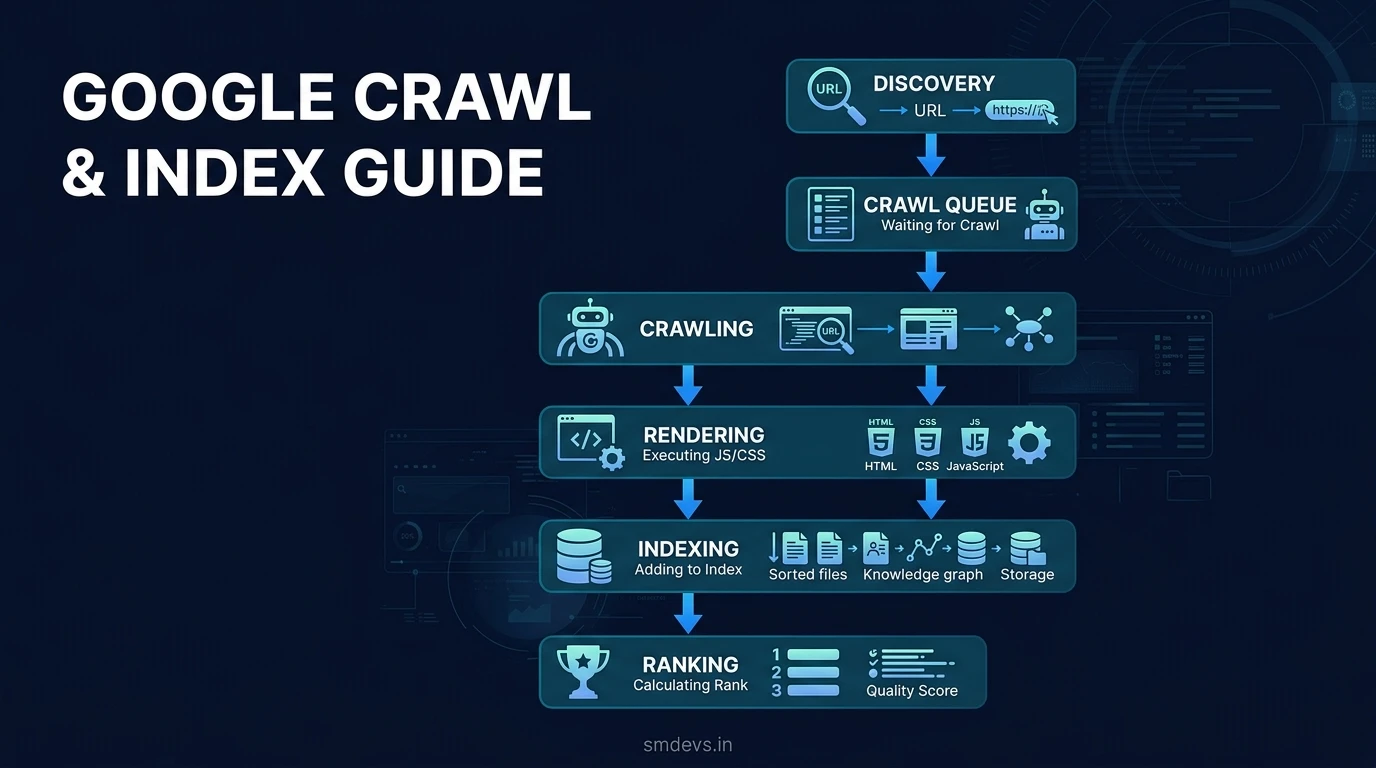
- Google's pipeline has 6 stages: Discovery → Crawl Queue → Crawling → Rendering → Indexing → Ranking
- Always submit your XML sitemap in Google Search Console for reliable discovery
- JavaScript rendering is delayed — use SSR for critical content
- Orphan pages (no internal links) may never be discovered by Googlebot
- Check GSC URL Inspection tool to see exactly why pages aren't indexed
Most SEO guides focus on what to put in your content. This guide focuses on something more fundamental: whether Google can even find, access, and properly understand your content in the first place. Without a working understanding of how Google's crawl and index pipeline operates, you can spend months optimizing content that Google cannot index correctly — and wonder why your rankings never move.
This guide walks through all six stages of Google's crawl and index pipeline, explains what happens at each stage, and shows you exactly how to optimize each step.
Why Understanding Google's Crawl Pipeline Matters
Google processes billions of web pages across hundreds of millions of websites. To do this at scale, it uses an automated system that:
- Discovers URLs
- Prioritizes them for crawling
- Fetches and reads the content
- Renders JavaScript and dynamic content
- Decides whether to index the page
- Ranks indexed pages using 200+ signals
Problems can occur at any of these stages. A misconfigured robots.txt can block stage 3. A noindex meta tag can block stage 5. Thin or duplicate content can cause stage 5 to fail even with no technical issues. Understanding the pipeline lets you diagnose exactly where the failure is occurring.
Key Takeaways
- Discovery is passive by default — submit your XML sitemap in Google Search Console to actively control it.
- Crawl budget is finite — large sites must manage it carefully; Google will not crawl every page of a million-page site on every crawl cycle.
- JavaScript rendering is delayed — content that requires JS to render may take days or weeks to be properly indexed. Use server-side rendering (SSR) for critical content.
- Indexing is not guaranteed — even if a page is crawled and rendered, Google may choose not to index it if it lacks quality signals.
- The four most common crawl blockers are: robots.txt disallow rules, noindex tags, orphan pages, and slow server response times.
Stage 1 — Discovery
Before Googlebot can crawl a page, it must first know the page exists. There are four primary discovery mechanisms:
- XML Sitemaps: The most reliable method. Submit your sitemap.xml to Google Search Console and Google will use it as a prioritized crawl queue. Your sitemap should include all URLs you want indexed and exclude any that should not be indexed.
- Internal Links: Every internal link on your site is a potential discovery pathway for Googlebot. Pages with no internal links (orphan pages) may never be discovered through natural crawling.
- External Backlinks: When another site links to your page, Googlebot can discover your page through that link. This is one reason backlinks matter beyond just PageRank — they serve as discovery pathways.
- Direct URL Submission: Google Search Console's URL Inspection tool allows you to manually submit individual URLs for crawling. Best used for high-priority new pages or after significant updates.
Optimization actions: Ensure every important page has at least one internal link pointing to it. Submit and maintain an accurate XML sitemap. Use Google Search Console's URL Inspection tool for priority pages after publishing.
Stage 2 — Crawl Queue & Priority
Once a URL is discovered, it enters Google's crawl queue — a massive priority list of URLs waiting to be fetched. Not all pages are treated equally in the queue. Priority is determined by:
- PageRank signals: Pages with more backlinks and internal links get crawled more frequently and with higher priority.
- Crawl budget: Each site is allocated a "crawl budget" — the number of pages Googlebot will crawl within a given timeframe. Sites with many low-quality or duplicate pages waste their crawl budget on pages that provide no ranking value, leaving important pages under-crawled.
- Freshness signals: Pages that are updated frequently (news sites, actively maintained blogs) get higher crawl priority than rarely updated pages.
- Server response time: If your server consistently responds slowly, Googlebot crawls fewer pages to avoid overloading your server. Slow servers directly compress your effective crawl budget.
Optimization actions: Remove or consolidate low-quality pages that waste crawl budget. Ensure your server responds in under 200ms to Googlebot requests. Use internal linking to pass PageRank signals to your most important pages.
Stage 3 — Crawling
At this stage, Googlebot makes an HTTP request to your server and fetches the page's raw HTML. During this fetch, it reads:
- The full HTML content of the page
- All internal and external links (adding new discovered URLs to the crawl queue)
- HTTP status codes (200 OK, 301 Redirect, 404 Not Found, 500 Server Error)
- HTTP headers including directives like
X-Robots-Tag - The robots.txt file to check for any access restrictions
Common blockers at this stage:
- robots.txt Disallow rules: If your robots.txt disallows Googlebot from crawling important pages or directories, those pages cannot be indexed regardless of their quality. Audit your robots.txt regularly.
- Slow server response: Response times over 2 seconds significantly reduce the number of pages Googlebot crawls per session.
- 5xx server errors: Server errors (500, 502, 503) cause Googlebot to skip the page and reduce future crawl frequency for affected pages.
Stage 4 — Rendering
After fetching the raw HTML, Google uses a headless Chrome browser to render the page — executing JavaScript, loading CSS, and building the fully rendered DOM. This is critical for modern web applications built with React, Next.js, Vue, Angular, or other JavaScript frameworks.
The rendering delay problem: Google does not render every page immediately after crawling. Due to resource constraints, rendering can be delayed by days or even weeks. This means that if critical content (body text, headings, internal links) is only available after JavaScript execution, it may not be indexed for an extended period after the page is first crawled.
Optimization actions:
- Use Server-Side Rendering (SSR) or Static Site Generation (SSG) for all critical content so it appears in the raw HTML before JS execution.
- If you must use client-side rendering, ensure critical metadata (title, meta description, canonical URL) is always in the initial HTML response.
- Use Google Search Console's URL Inspection tool to see the rendered version of your pages as Googlebot sees them.
Stage 5 — Indexing
After rendering, Google analyzes the page and decides whether to add it to the search index. A page will not be indexed if:
- It contains a
<meta name="robots" content="noindex">tag - The HTTP response contains an
X-Robots-Tag: noindexheader - The content is judged as low quality, thin, or near-duplicate of another indexed page
- The page is a near-copy of another page on the same site (duplicate content)
- A canonical tag points to a different URL (Google indexes the canonical version)
Optimization actions:
- Audit your site for accidental noindex tags — CMS plugins and staging environments frequently add noindex tags that persist to production.
- Ensure canonical tags are correct and consistent.
- Address thin content pages: either improve them, consolidate them with other pages via 301 redirects, or add a noindex tag intentionally.
- Check Google Search Console's Coverage report regularly for indexing issues.
Stage 6 — Ranking
Once indexed, the page becomes eligible to appear in search results. Google then ranks it against all other indexed pages for relevant queries using 200+ signals. The key ranking signal clusters are:
- Relevance: Does the page's content match the user's search intent? Are the right keywords and entities present?
- Authority: How many quality backlinks point to the page and domain? What is the domain's topical authority?
- E-E-A-T: Does the content demonstrate Experience, Expertise, Authoritativeness, and Trustworthiness?
- Core Web Vitals: Does the page load fast, respond to interactions quickly, and maintain visual stability?
- User Experience signals: Click-through rate, dwell time, and other behavioral signals.
The 4 Most Common Crawl Blockers
| Blocker | Stage Affected | How to Fix |
|---|---|---|
| robots.txt Disallow | Crawling (Stage 3) | Audit robots.txt; remove incorrect Disallow rules |
| Noindex meta tag | Indexing (Stage 5) | Audit for accidental noindex; check staging configs |
| Orphan pages (no internal links) | Discovery (Stage 1) | Add internal links to all important pages |
| Slow server response | Crawl Queue (Stage 2) & Crawling (Stage 3) | Optimize server response time to under 200ms |
Frequently Asked Questions
How long does it take for Google to index a new page?
For well-established sites with regular crawling, a new page submitted via Google Search Console can be indexed within hours to days. For newer sites or sites with limited crawl budget, indexing can take weeks. The fastest path to indexing is: submit your sitemap to Google Search Console, use the URL Inspection tool to request indexing for priority pages, and ensure the page has internal links from already-indexed pages on your site.
What is crawl budget and does it affect my site?
Crawl budget is the number of pages Googlebot will crawl on your site within a given time period. For small sites (under a few hundred pages), crawl budget is rarely a concern — Google will crawl everything. For larger sites (tens of thousands of pages or more), crawl budget management becomes critical. Common crawl budget wasters include: low-quality or thin pages, duplicate content, URL parameter variations that create redundant pages, and redirect chains. Use your Google Search Console crawl stats report to diagnose crawl budget issues.
Does Google see JavaScript content?
Yes, but not immediately. Google's rendering pipeline processes JavaScript-rendered content separately from HTML content, and this rendering step can be delayed by days or weeks. For critical content (body text, headings, navigation links, internal links), always ensure it is present in the raw HTML response using Server-Side Rendering (SSR) or static generation. Use the Google Search Console URL Inspection tool to check what your pages look like to Googlebot in their rendered state.
Why is my page crawled but not indexed?
The most common reasons Google crawls a page but refuses to index it are: the page has a noindex directive (check both meta tags and HTTP headers), the content is judged as thin or low-quality, the page is considered near-duplicate of another page, or the canonical tag points to a different URL. Check the URL Inspection tool in Google Search Console for the specific reason — it will show you exactly why an indexed page was not indexed.
Your Next Step
Download the Google Crawl & Index Guide infographic for a quick-reference pipeline diagram. To ensure your pages pass Google's quality filter at Stage 5, review the SEO Audit Checklist infographic. And to understand what happens at Stage 6 ranking, see the Google Ranking Signals 2026 infographic.