Key Takeaways
- Schema markup (structured data) tells Google exactly what your content means — not just what it says. Adding it correctly can unlock rich results in Google search: star ratings, FAQ dropdowns, breadcr
What is Schema Markup and Why Add It?
Schema markup is code you add to your webpage that helps Google understand the context of your content. Without it, Google has to guess what your page is about. With it, you explicitly tell Google: "This is an Article", "This is a FAQ", "This is a Product with a price of ₹999".
When Google understands your content better, it can display rich results — visual enhancements in search results that dramatically increase your click-through rate:
- ⭐ Star ratings below your title
- ❓ FAQ dropdowns that expand in search results
- 🍞 Breadcrumb navigation paths
- 💰 Product prices and availability
- 📋 How-to steps shown directly in SERP
Pages with rich results consistently get 20–30% higher CTR than standard blue-link results. If you're getting impressions but low clicks, adding schema markup is one of the fastest fixes.
Step-by-Step: How to Add Schema Markup to Your Website
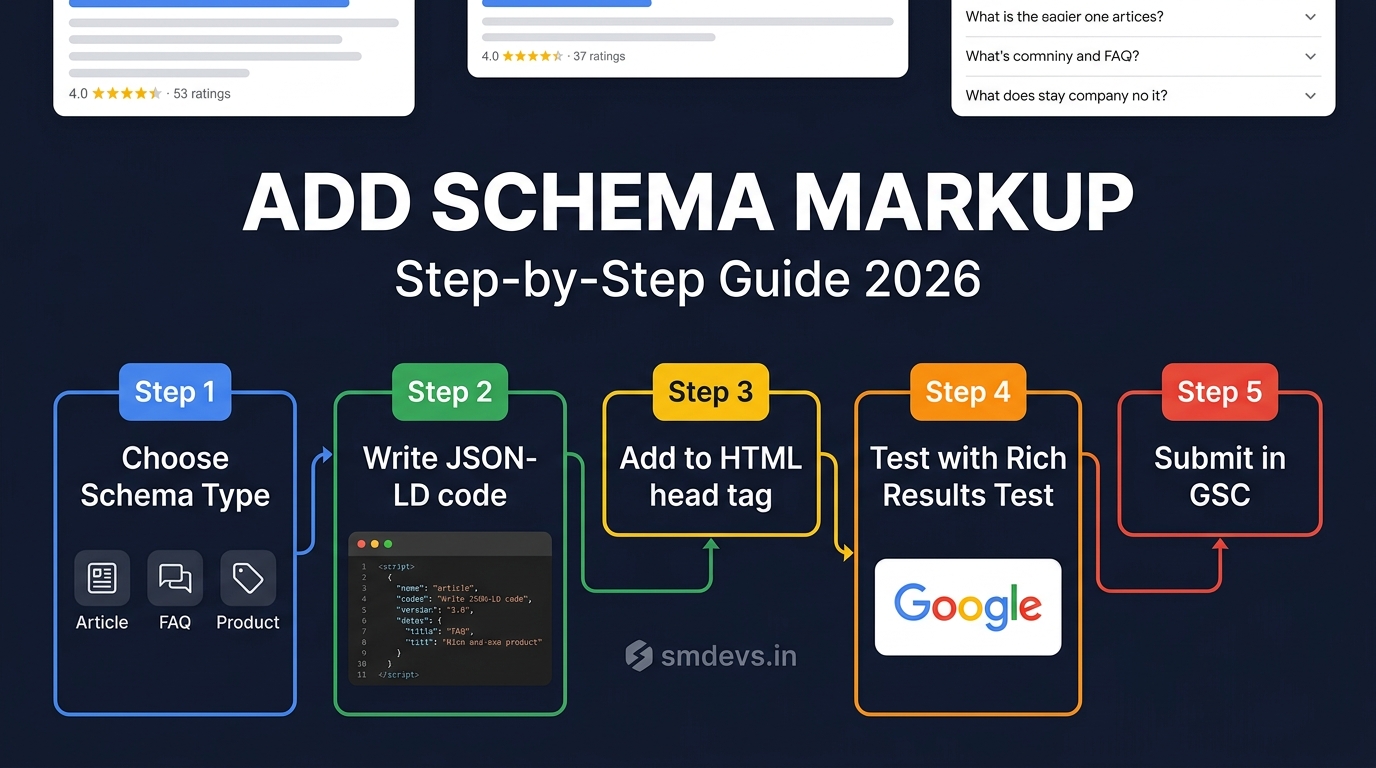
Step 1: Choose the Right Schema Type
First, match your page type to the correct schema type from Schema.org:
| Page Type | Schema Type | Rich Result Eligible |
|---|---|---|
| Blog post / article | Article | Google News, Top Stories |
| FAQ page or section | FAQPage | FAQ dropdowns in SERP |
| Product page | Product | Price, availability, ratings |
| How-to tutorial | HowTo | Steps shown in SERP |
| Local business | LocalBusiness | Knowledge Panel, Maps |
| Navigation | BreadcrumbList | Breadcrumbs in SERP URL |
| Web tool / app | SoftwareApplication | App rating, price |
| Organisation / brand | Organization | Knowledge Panel |
Step 2: Write Your JSON-LD Schema Code
Google recommends JSON-LD format — it goes in a <script> tag and doesn't touch your page's HTML structure. Here's a complete Article schema example:
<script type="application/ld+json">
{
  "@context": "https://schema.org",
  "@type": "Article",
  "headline": "How to Add Schema Markup to Your Website",
  "description": "Step-by-step guide to adding structured data markup",
  "author": {
    "@type": "Organization",
    "name": "SM Developers",
    "url": "https://smdevs.in"
  },
  "publisher": {
    "@type": "Organization",
    "name": "SM Developers",
    "logo": {
      "@type": "ImageObject",
      "url": "https://smdevs.in/logo.png"
    }
  },
  "datePublished": "2026-08-22",
  "dateModified": "2026-08-22",
  "image": "https://smdevs.in/images/schema-guide.jpg",
  "url": "https://smdevs.in/resources/blogs/how-to-add-schema-markup-website-step-by-step"
}
</script>
Step 3: Add the Schema to Your HTML
Paste the JSON-LD script tag into the <head> section of your HTML. For different platforms:
- WordPress: Use Yoast SEO or Rank Math — they add schema automatically. For custom schema, use a plugin like "Schema & Structured Data for WP"
- Next.js: Add a
<script type="application/ld+json">tag inside your page component usingdangerouslySetInnerHTML - Shopify: Add to your theme's
product.liquidtemplate inside the<head>section - HTML/Static sites: Paste directly inside the
<head>tag of each relevant page - Google Tag Manager: Use a Custom HTML tag with "All Pages" trigger — deploy instantly without code deployment
Step 4: Validate Your Schema Markup
Before going live, always validate your schema. Errors in schema markup can prevent rich results from appearing — or even trigger manual actions.
Use our free Schema Validator tool — paste your JSON-LD or your page URL to instantly check for errors, warnings, and rich result eligibility.
Also use Google's official tools:
- Rich Results Test: Shows which rich results your page is eligible for and flags any errors
- Schema.org Validator: Validates against the schema.org vocabulary specification
Step 5: Monitor in Google Search Console
After deploying, go to Google Search Console → Enhancements section. You'll see reports for:
- Articles
- FAQ
- Breadcrumbs
- Products
- Sitelinks Searchbox
Each report shows Valid, Warnings, and Errors counts for your schema across the entire site. Fix any errors shown — they are preventing rich results for those pages.
FAQ Schema: The Highest-Impact Schema You Can Add Today
FAQ schema is the single easiest schema to add with the highest immediate impact on search results. A page with valid FAQ schema can display up to 3 Q&A pairs directly in the search results — doubling or tripling your SERP real estate.
<script type="application/ld+json">
{
  "@context": "https://schema.org",
  "@type": "FAQPage",
  "mainEntity": [
    {
      "@type": "Question",
      "name": "What is schema markup in SEO?",
      "acceptedAnswer": {
        "@type": "Answer",
        "text": "Schema markup is structured data code that helps search engines understand your page content, enabling rich results in search."
      }
    },
    {
      "@type": "Question",
      "name": "Does schema markup improve rankings?",
      "acceptedAnswer": {
        "@type": "Answer",
        "text": "Schema markup is not a direct ranking factor, but it improves CTR through rich results, which is an indirect positive signal."
      }
    }
  ]
}
</script>Rule: Only mark up Q&A content that is actually visible on the page. Google will reject schema that marks up hidden content.
Common Schema Markup Errors (and How to Fix Them)
| Error | Cause | Fix |
|---|---|---|
| Missing required field | Schema type has mandatory properties not included | Check schema.org docs for required fields; use Rich Results Test to identify missing fields |
| Content mismatch | Schema describes content not visible on page | Only mark up visible on-page content — schema must match what users can read |
| Invalid property value | Wrong data type (e.g., string instead of URL) | Check property type in schema.org docs; validate with our schema checker |
| Duplicate @type | Same type added twice on one page | Combine into one block or use an array |
| Spam policy violation | Schema used to misrepresent content (fake reviews, false prices) | Never misuse schema — Google can apply manual actions for structured data spam |
Free Schema Validator — Test Your Structured Data
Before and after adding any schema markup, validate it with our free Schema Validator tool at smdevs.in. Simply paste your JSON-LD code or enter your page URL to:
- Instantly detect syntax errors
- Check for missing required properties
- See which rich results your schema qualifies for
- Get specific fix recommendations for each error
FAQs: Adding Schema Markup
Do I need to add schema markup to every page?
No — add schema where it's relevant and where it will earn rich results. Priority: (1) FAQPage schema on any page with Q&A content, (2) Article schema on all blog posts, (3) Product schema on product pages, (4) BreadcrumbList on all pages, (5) Organization schema on the homepage. Don't add schema just for the sake of it — irrelevant schema can confuse Google.
How long does schema markup take to show rich results?
Google typically processes schema within 1–4 weeks after implementation. Rich results eligibility is determined by Googlebot's next crawl and validation. You can speed this up by submitting URLs for indexing in Google Search Console after adding schema.
Is JSON-LD better than Microdata for schema?
Yes — JSON-LD is Google's recommended format. It's placed in a separate script tag so it doesn't interfere with your HTML, it's easier to read and maintain, and it's simpler to debug. Microdata is embedded directly into HTML elements and is significantly harder to manage, especially on large sites.